
Do not mix up voucher and coupon. A coupon gives a discount on an order, in the cart —
see Buy a training or an exam. A voucher gives you the content
straight away: no cart, nothing to pay.
Table of contents
- Step 1 — Find your voucher in your e-mails
- Step 2 — Check what it includes
- Step 3 — Open the Apply voucher window
- Step 4 — Enter the code
- Step 5 — Find your trainings and exams
- Good to know
Step 1 — Find your voucher in your e-mails
Your voucher is sent to you by e-mail, by StrivEd, with the subject Your Voucher Details.The body of the voucher e-mail is written in French, whatever language you use in the app.
The screenshots below show it as you will receive it; the tables explain each part in English.
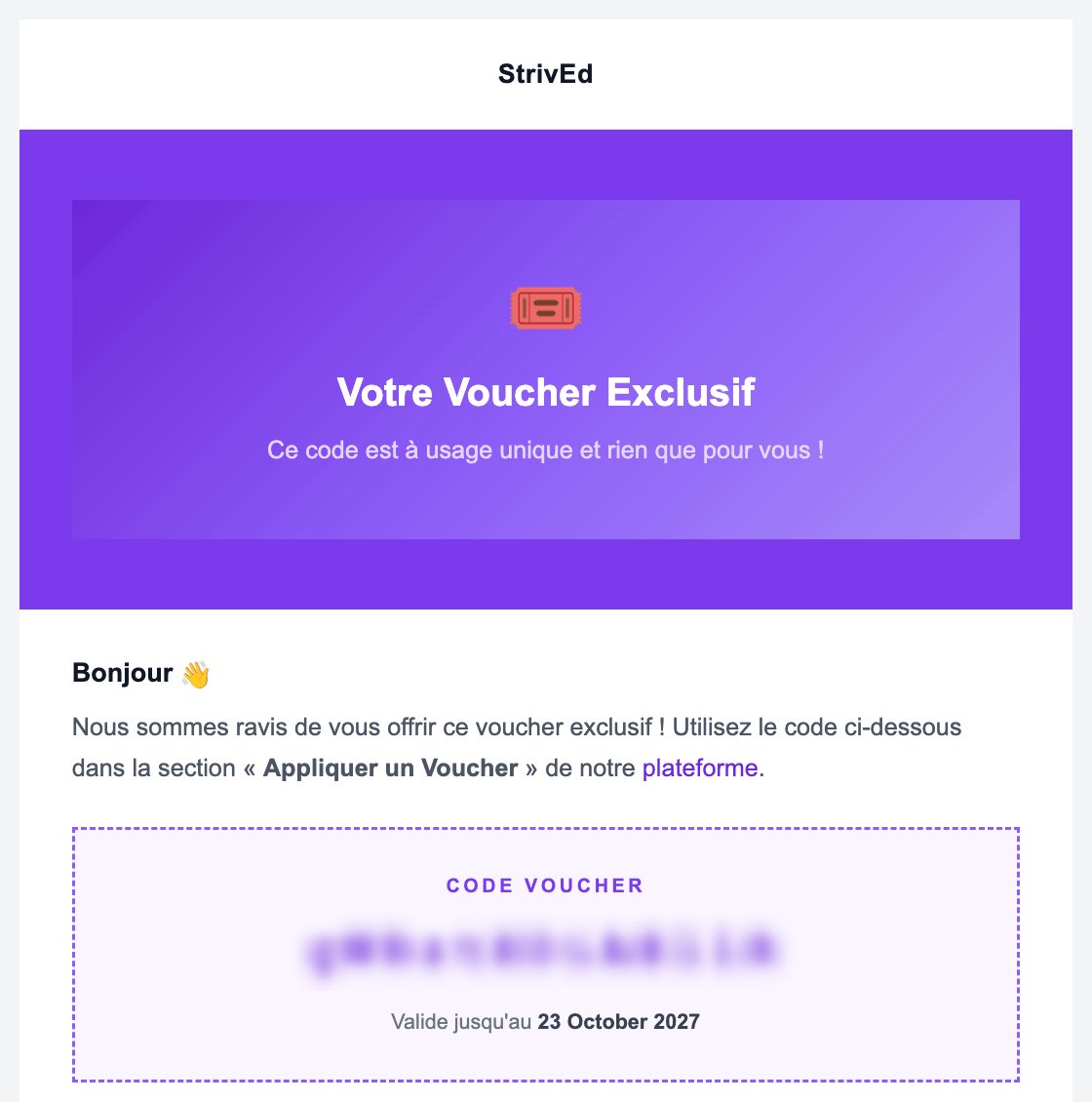
The voucher e-mail. The code is hidden on this screenshot.
Step 2 — Check what it includes
Further down, the e-mail lists the trainings and exams the voucher unlocks: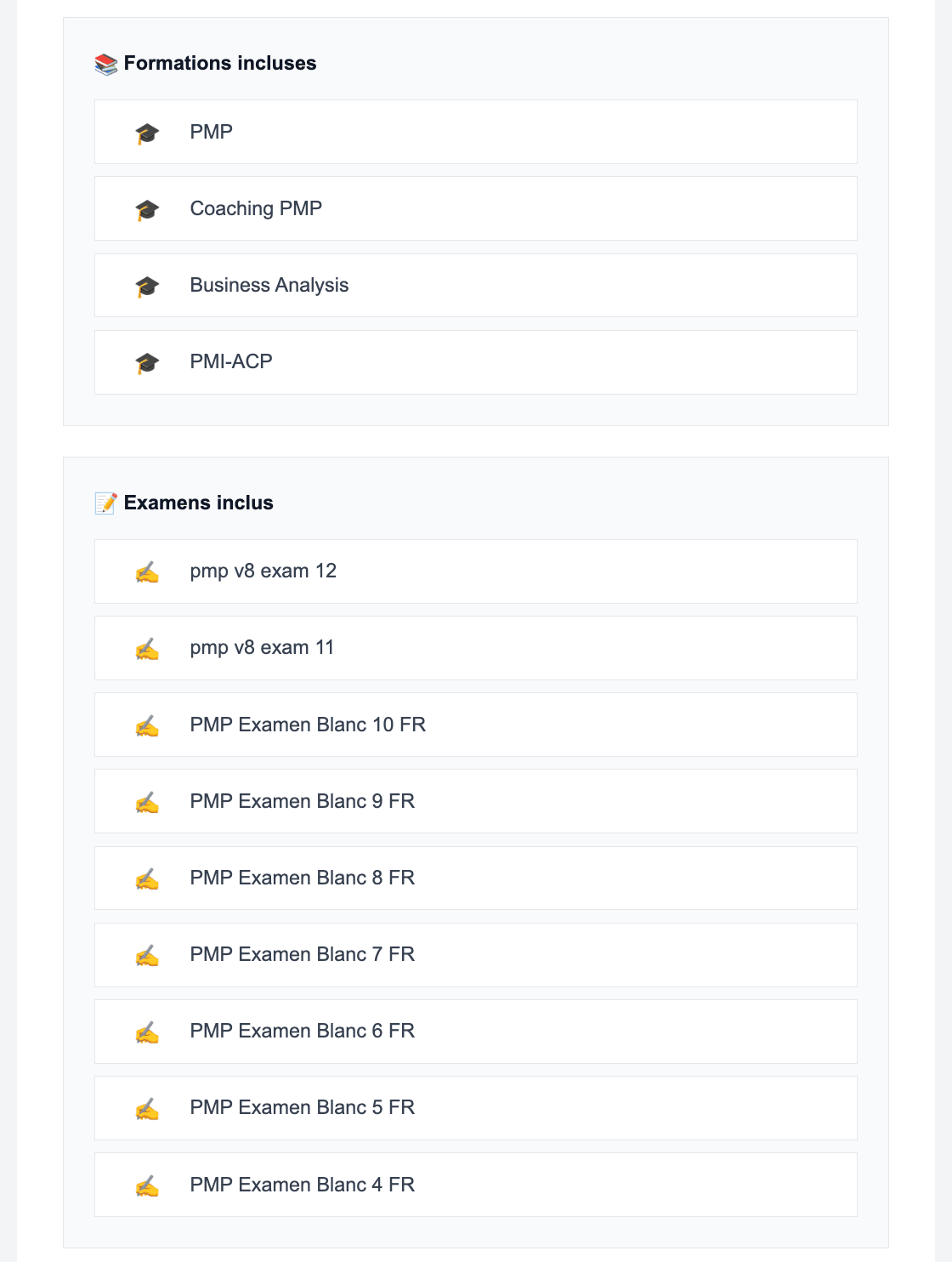
The content the voucher unlocks.
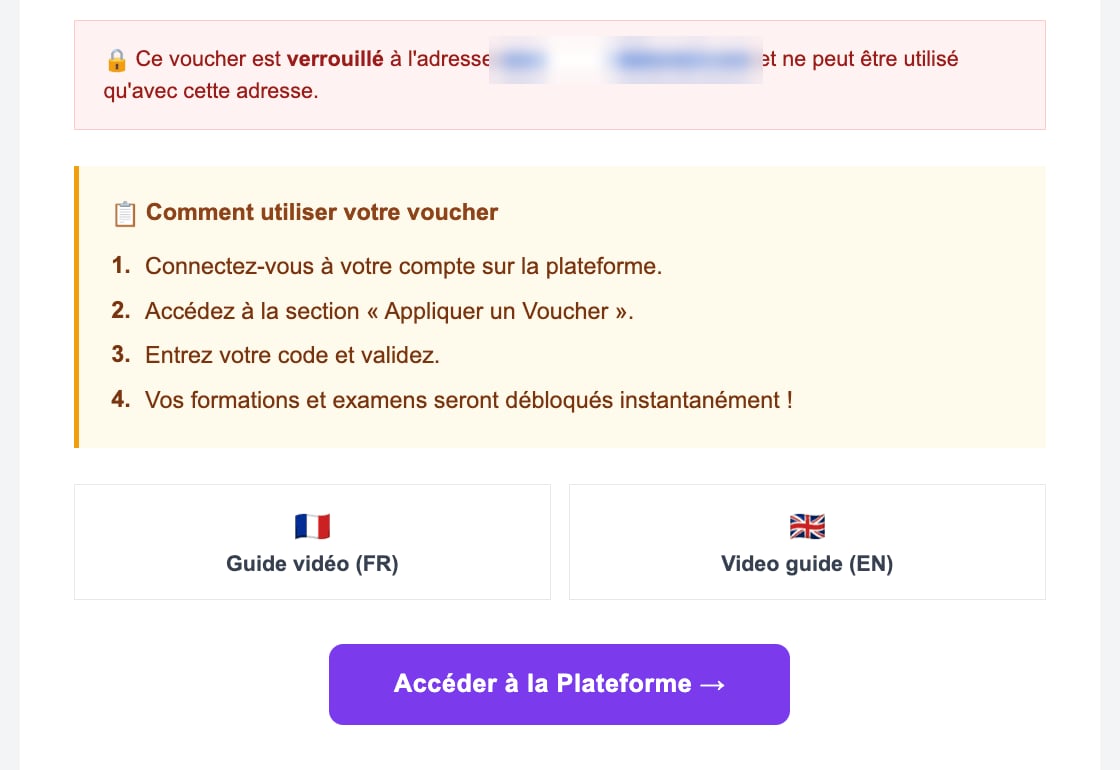
The voucher lock and its instructions. The address is hidden on this screenshot.
Step 3 — Open the Apply voucher window
Log in with the e-mail address that received the voucher, then open the Apply voucher window:- from the Dashboard: the Apply voucher button in the purple banner;
- or, while you do not own any training or exam yet, with the Redeem voucher button at the top of the screen.
Step 4 — Enter the code
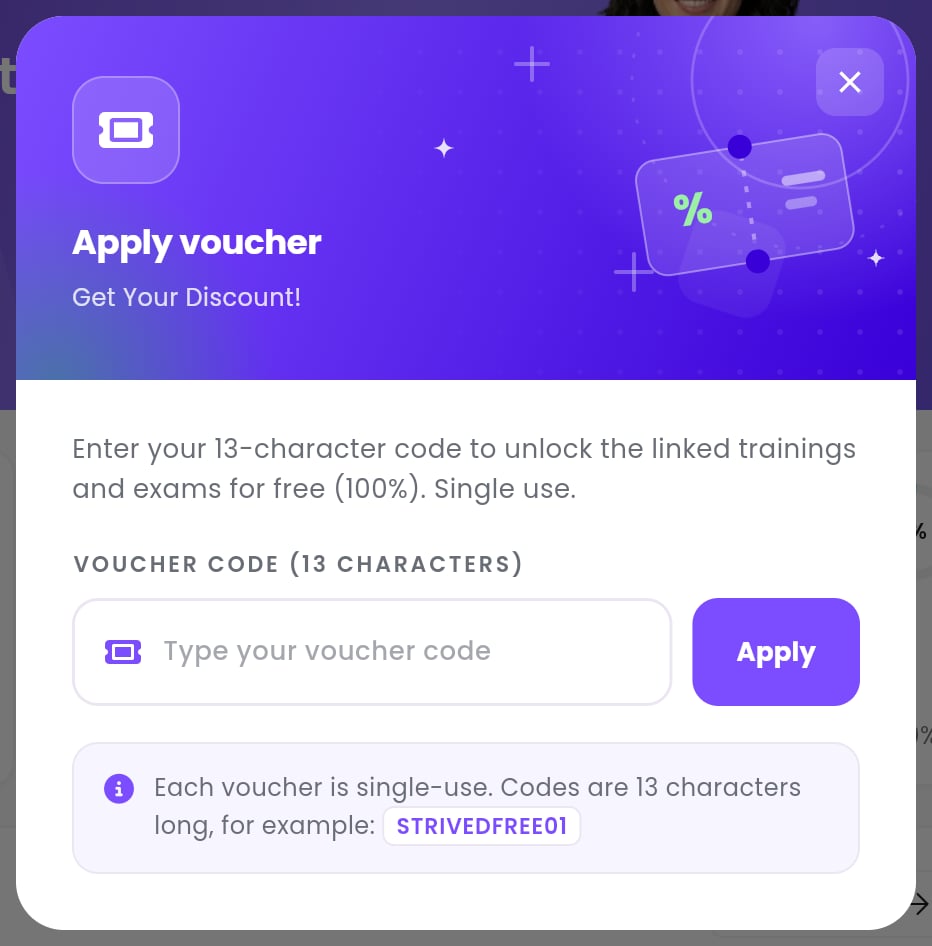
The Apply voucher window.
1
Paste the code
Copy the code from the e-mail and paste it into Type your voucher code. It must be exactly
13 characters long.
2
Click Apply
The message Voucher has been applied successfully confirms that your content is unlocked.
3
Click Refresh this page
The app updates with your new trainings and exams.
Step 5 — Find your trainings and exams
Good to know
The code is refused: what does the message mean?
The code is refused: what does the message mean?
I already own part of the content
I already own part of the content
What you already own stays as it is: the voucher only adds the trainings and exams you are
missing.
Can I give my voucher to someone else?
Can I give my voucher to someone else?
No. A voucher only works once, and it is usually locked to the e-mail address that received
it.