
Everything below is for the web app on a computer, signed in with an Instructor account.
The screenshots come from the test platform, so your figures and trainings will be different.
Table of contents
- Step 1 — The sidebar and the top bar
- Step 2 — Read your dashboard
- Step 3 — Get help
- What you do, what an admin does
- Good to know
Step 1 — The sidebar and the top bar
After you sign in, the platform opens on your Dashboard. The sidebar on the left leads to every instructor tool: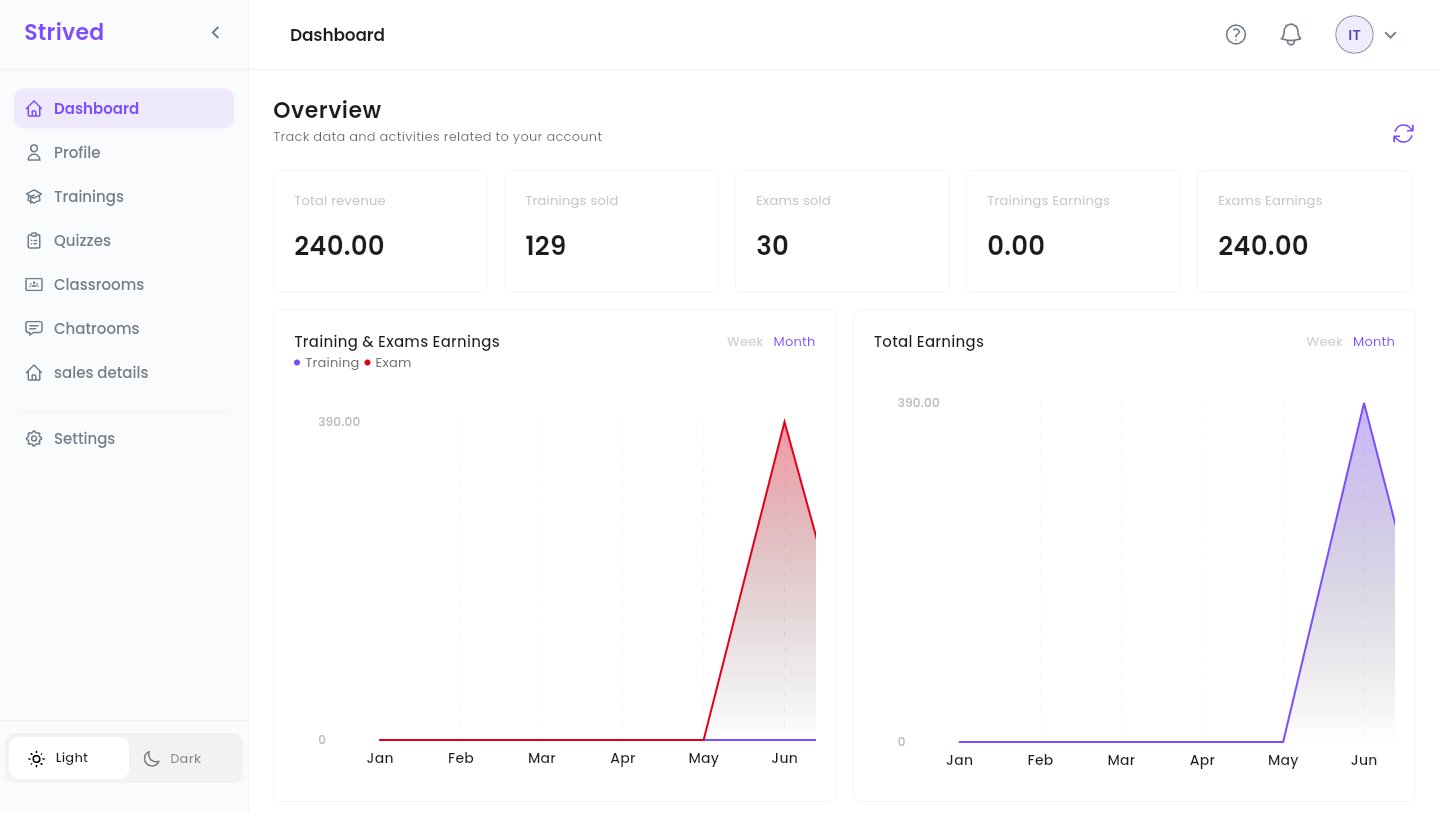
The instructor dashboard, with the sidebar on the left.
Settings (password, language, notifications, two-factor authentication) is not covered in this
guide. Your name, photo and bio are edited from Profile instead.
At the bottom of the sidebar, Light / Dark switches the theme, and the arrow next to the
Strived logo folds the sidebar down to icons.
The top bar
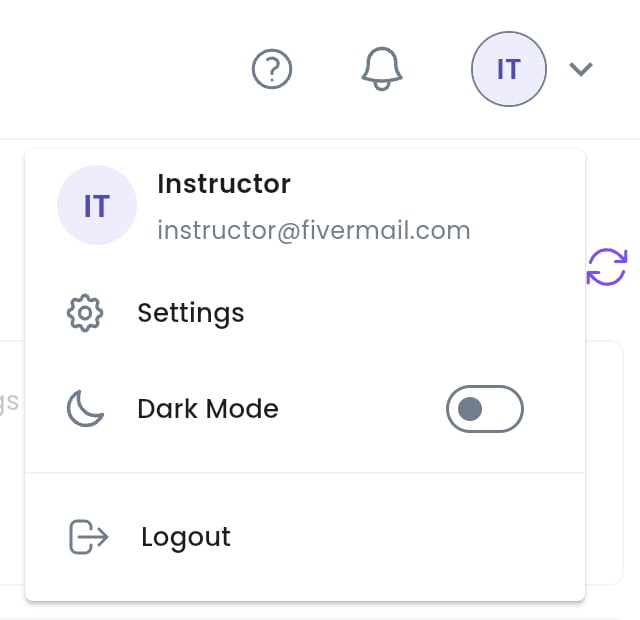
The avatar menu, top right.
Step 2 — Read your dashboard
The Overview sums up your sales. All amounts are in TND and are your share, after the platform’s part.
Both charts switch between Week and Month at their top right. The round-arrow button at the
top right of the Overview reloads the figures.
Step 3 — Get help
Click ? in the top bar.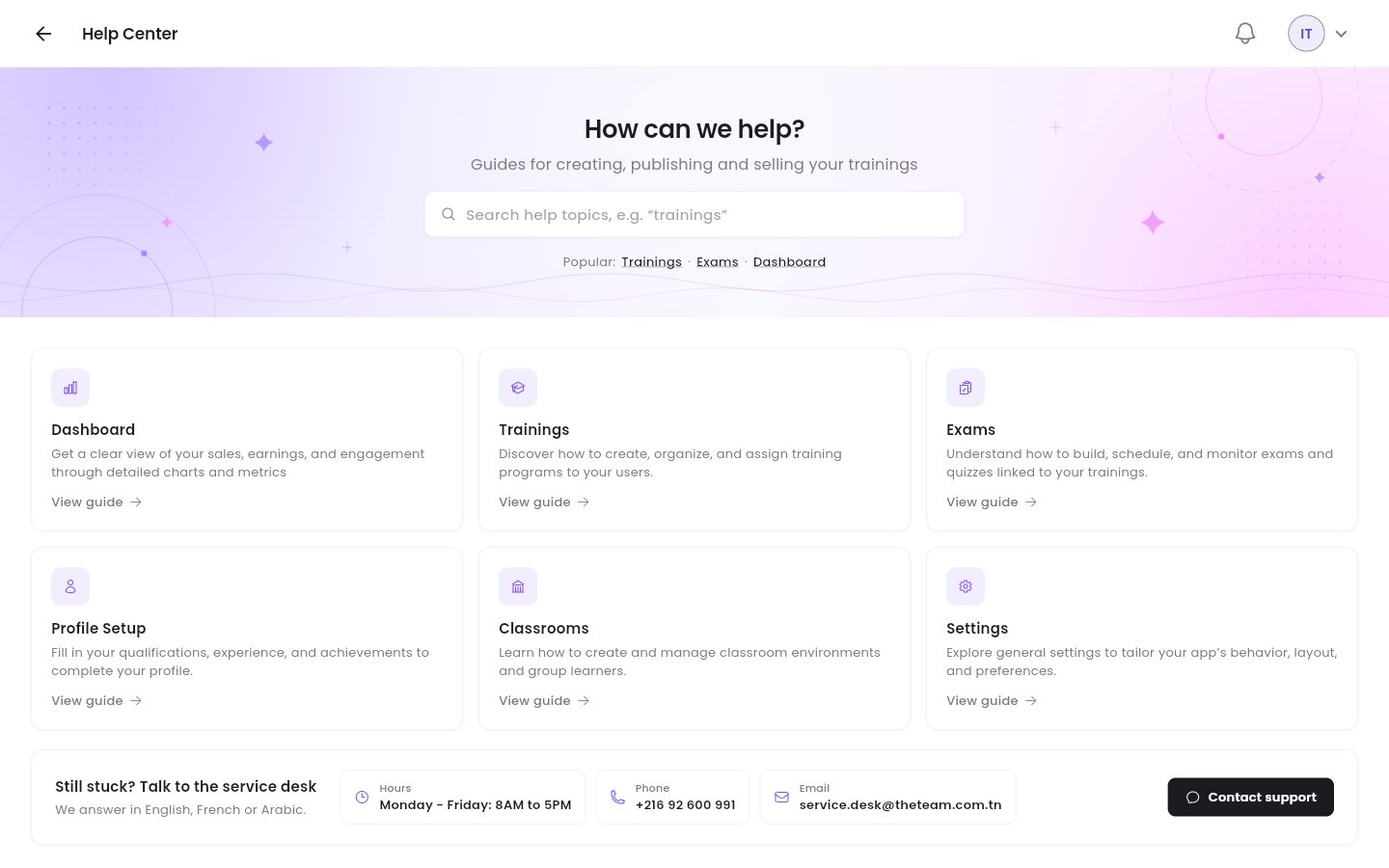
The instructor Help Center.
- Search a topic, or use the Popular: shortcuts (Trainings, Exams, Dashboard).
- Six cards cover Dashboard, Trainings, Exams, Profile Setup, Classrooms and Settings. View guide opens the video guide of the topic.
- Still stuck? Talk to the service desk gives the service desk’s hours, phone number and e-mail. Contact support opens an e-mail ready to send. The service desk answers in English, French or Arabic.
What you do, what an admin does
You write the content; the platform’s admins take care of the business side:A new training or exam is saved as a Draft: learners do not see it yet. When it is ready, ask
an admin to publish it.
Good to know
My revenue percentage looks wrong
My revenue percentage looks wrong
Your share of each sale is set by an admin (in Users → Set Revenue). Contact the platform’s
admins or the service desk.
The figures look out of date
The figures look out of date
Click the round arrow at the top right of the Overview: the figures load again from the
server.
Can I use the platform on my phone?
Can I use the platform on my phone?
Yes, the mobile app has an instructor space too: see Mobile App.
This guide describes the web app, which has every tool, including the editors.