Everything below is for the web app on a computer, signed in with a Content Manager
account. The screenshots come from the test platform.
Table of contents
- Step 1 — The sidebar and the top bar
- Step 2 — The dashboard
- Step 3 — Your profile
- Step 4 — Get help
- Who does what
- Good to know
Step 1 — The sidebar and the top bar
After you sign in, the platform opens on the Dashboard. The sidebar on the left leads to every tool you have: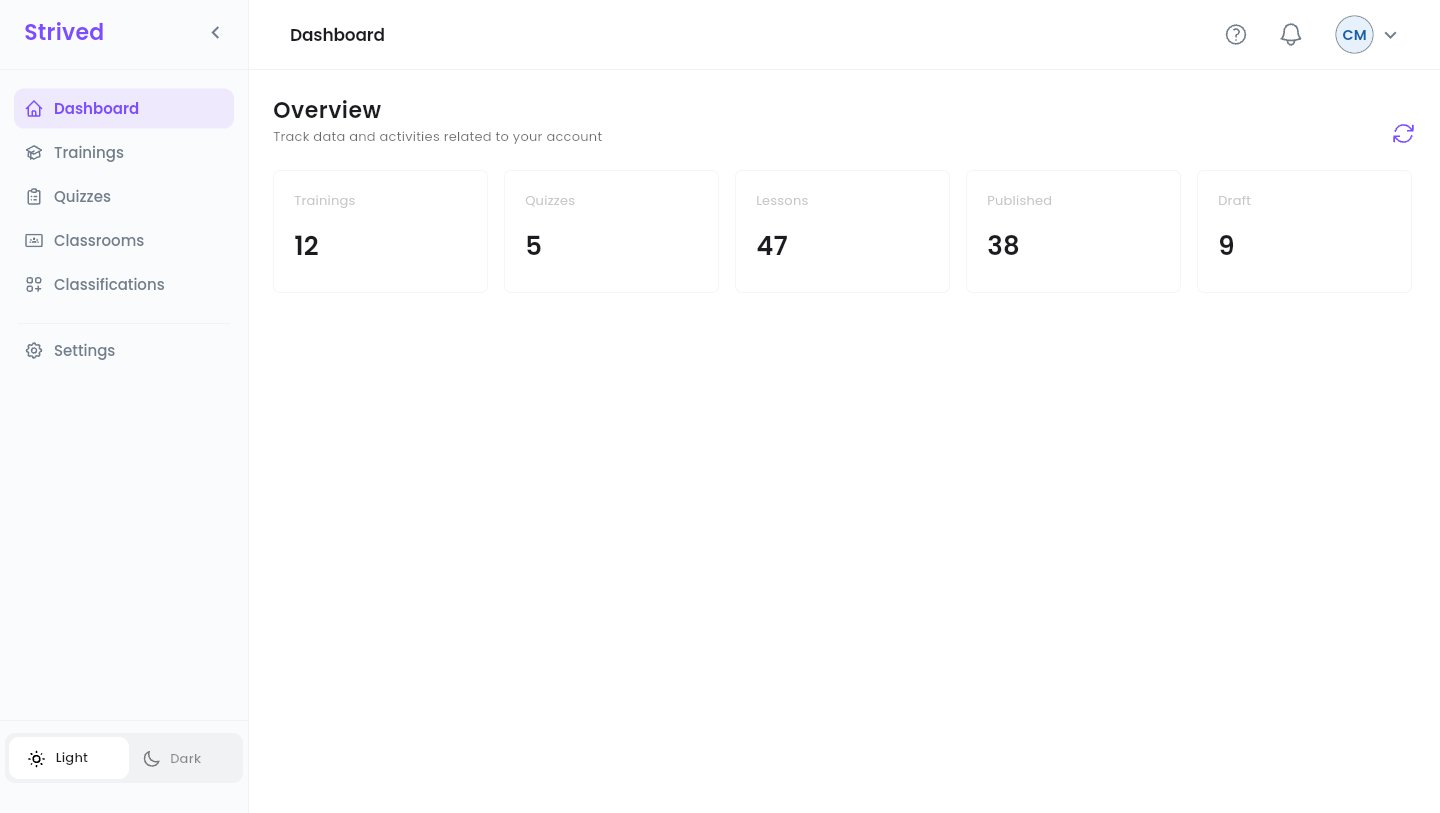
The content manager dashboard, with the sidebar on the left.
At the bottom of the sidebar, Light / Dark switches the theme, and the arrow next to the
Strived logo folds the sidebar down to icons.
The top bar
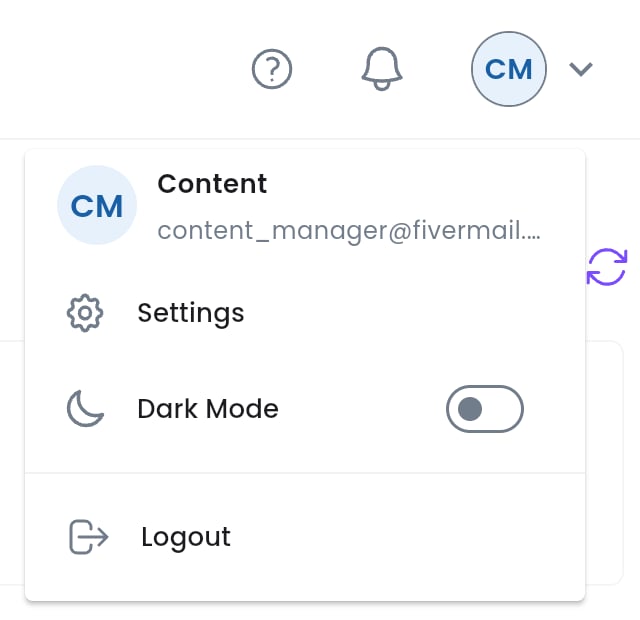
The avatar menu, top right.
Step 2 — The dashboard
The Overview has five cards: Trainings, Quizzes, Lessons, Published and Draft. The round-arrow button at the top right reloads them.Step 3 — Your profile
Click Settings in the sidebar (or Settings in the avatar menu). The Profile page opens.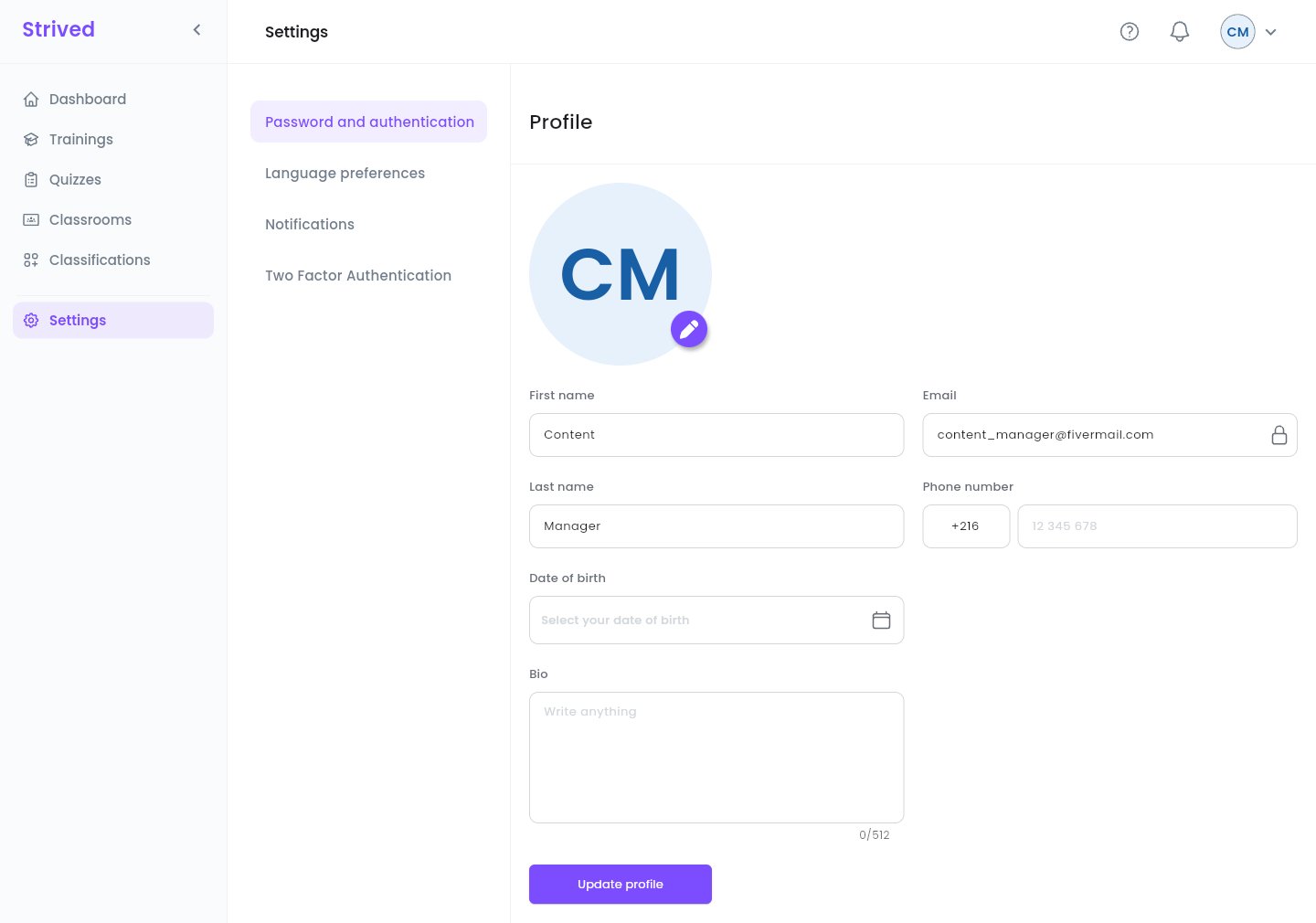
Settings → Profile.
1
Photo (optional)
Click the purple pencil on your photo.
2
Your details
First name, Last name, Phone number (country code, then the number), Date of
birth and Bio. The Email (padlock) cannot be changed.
3
Save
Click Update profile.
Step 4 — Get help
Click ? in the top bar.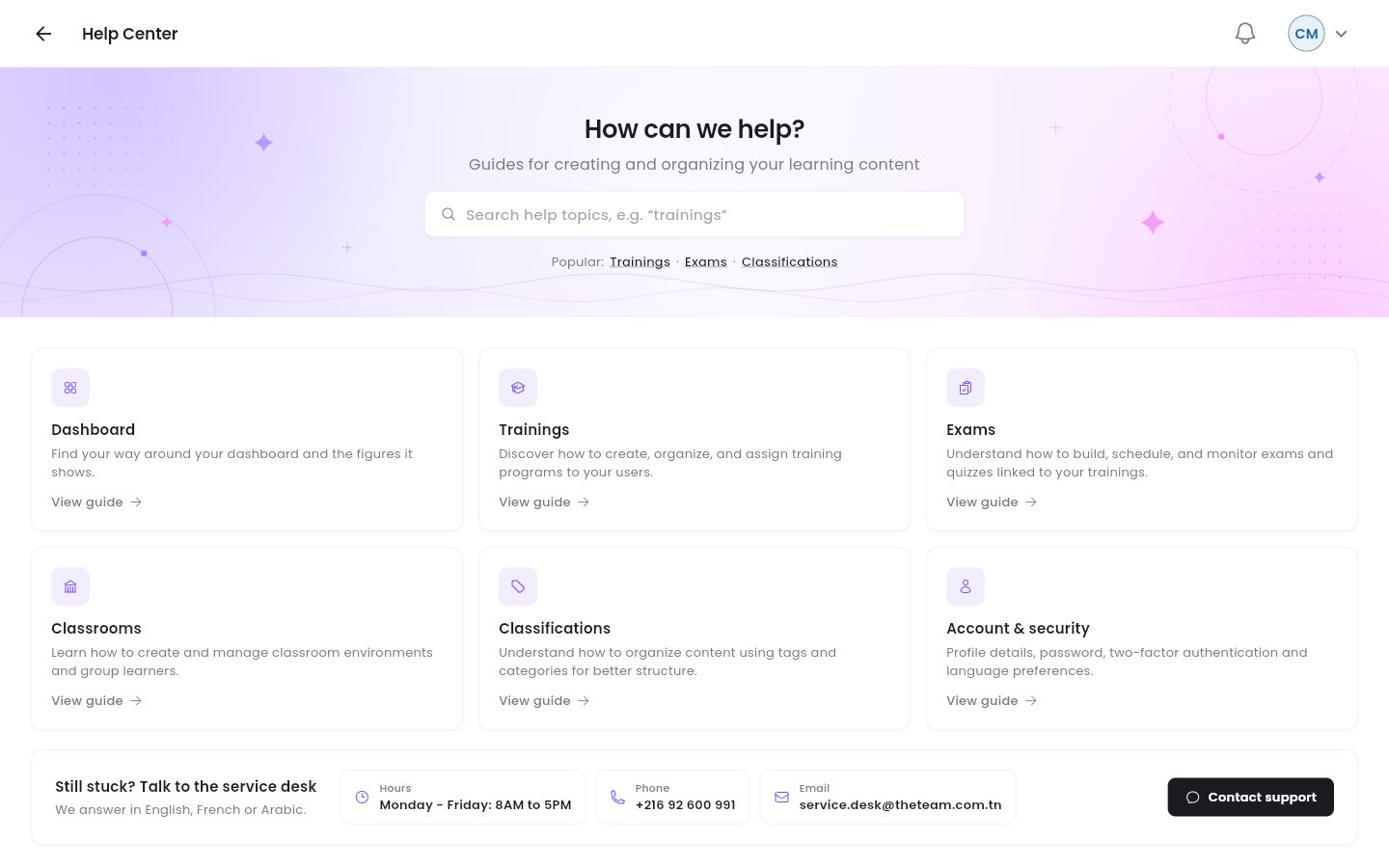
The content manager Help Center.
- Search a topic, or use the Popular: shortcuts (Trainings, Exams, Classifications).
- Six cards cover Dashboard, Trainings, Exams, Classrooms, Classifications and Account & security. View guide opens the video guide of the topic.
- Still stuck? Talk to the service desk gives the service desk’s hours, phone number and e-mail. Contact support opens an e-mail ready to send. The service desk answers in English, French or Arabic.
Who does what
Instructors cannot publish: when one of them finishes a training or an exam, it waits as a
Draft until you or an admin publish it. Check the Draft rows of your lists regularly.
Good to know
I need to archive a training or give it to a learner
I need to archive a training or give it to a learner
Those actions are reserved to admins. Ask an admin of the platform.
Can I change my e-mail?
Can I change my e-mail?
No, it is your login. Contact an admin if it has to change.