Everything below is for the web app on a computer. The screenshots were taken on a real
training, so what you see on your screen will show your own trainings and your own progress.
Table of contents
- Step 1 — Open My Trainings
- Step 2 — Pick the training you want to study
- Step 3 — Find your way around the course player
- Step 4 — Move between lessons with the Course Content panel
- Step 5 — Study a lesson and mark it complete
- Step 6 — Follow your progress toward the certificate
- Good to know
Step 1 — Open My Trainings
1
Click My Content in the top bar
The dark bar at the very top of the page is the main menu: Dashboard, My Content,
Marketplace and Help Center. Click My Content.
2
Stay on the My Trainings tab
A second row of tabs appears underneath: My Trainings, My Exam Simulator,
Classrooms & Chat, Certificates and Exam Attempts. My Trainings is the first
one and opens by default. The small grey number next to each tab tells you how many items it holds.
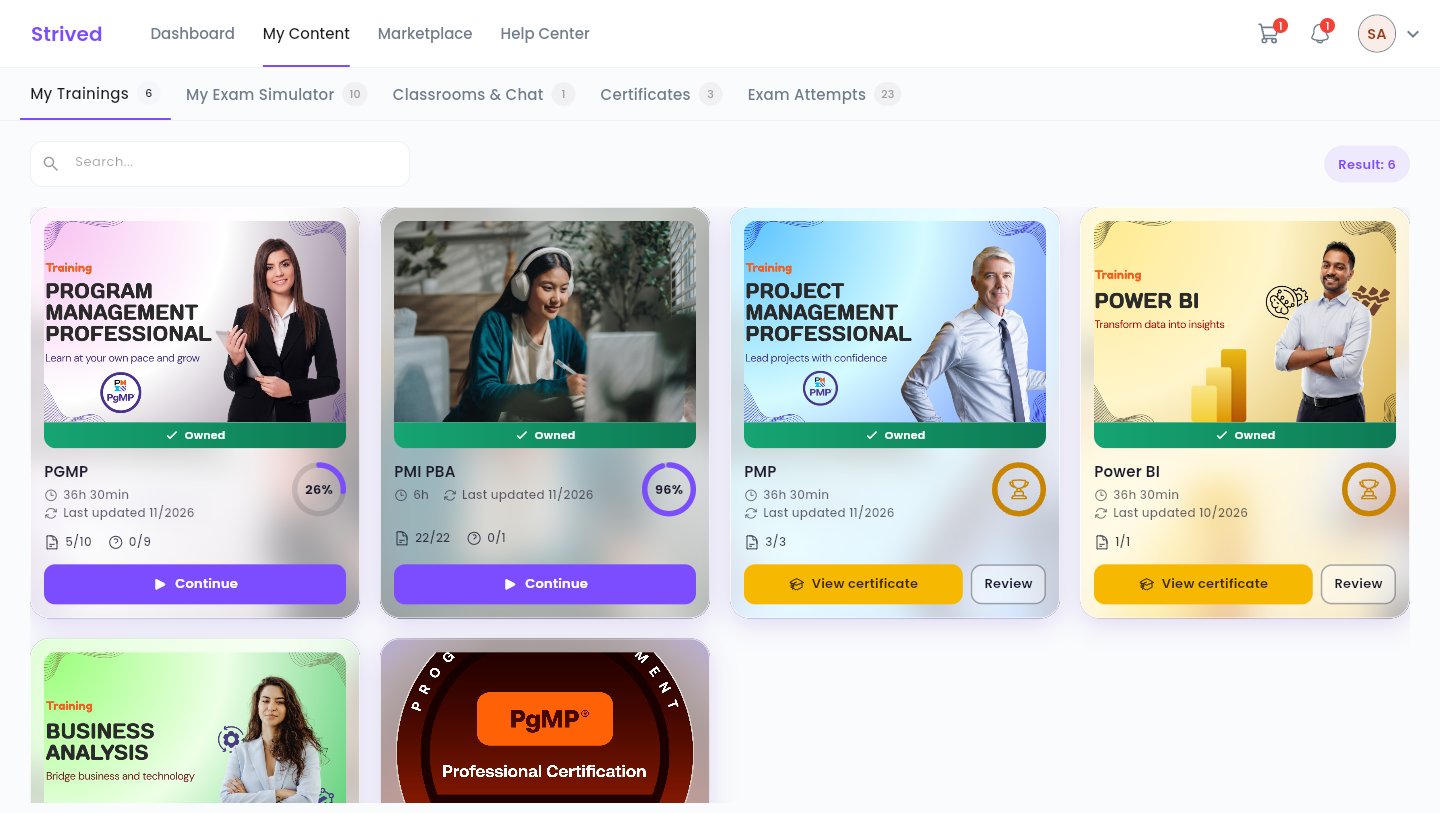
My Content → My Trainings: every training you own, with its progress.
/student-my-content/trainings. You can bookmark it to come back straight
to this page.
Step 2 — Pick the training you want to study
Each training is a card. Here is what it tells you: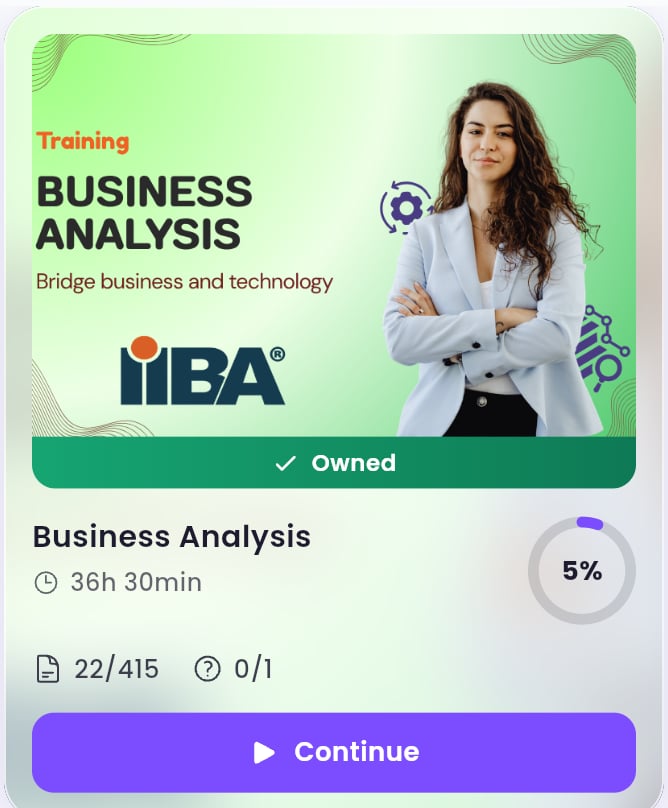
A training card: cover, title, duration, progress and what is left to do.
Click Continue to open the training.
When you have finished everything, Continue is replaced by View certificate and
Review. Review reopens the lessons in read-only mode so you can go over them again.
Step 3 — Find your way around the course player
The training opens in the course player. Its address looks like/student-my-content/student-training-details/2, where the number is the training’s own id.
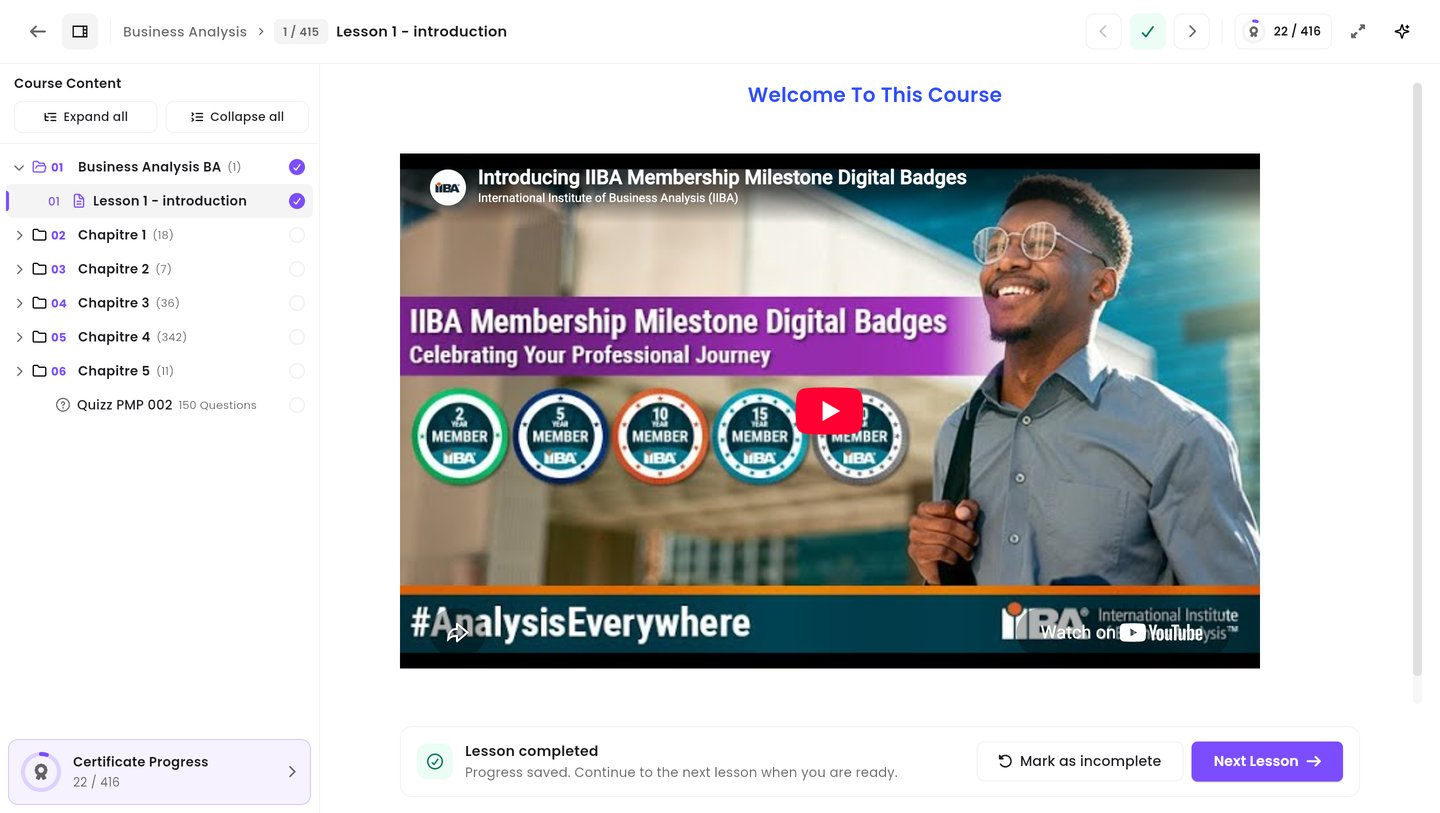
The course player: navigation panel on the left, lesson in the middle, toolbar on top.
- The toolbar across the top — where you are, and the buttons to move around.
- The Course Content panel on the left — the full list of chapters, lessons and quizzes.
- The lesson pane in the middle — the lesson you are studying right now.
The toolbar, button by button

The course player toolbar.
Step 4 — Move between lessons with the Course Content panel
The left panel is how you navigate the training. It lists every chapter, and inside each chapter every lesson and quiz, in the order the instructor set them.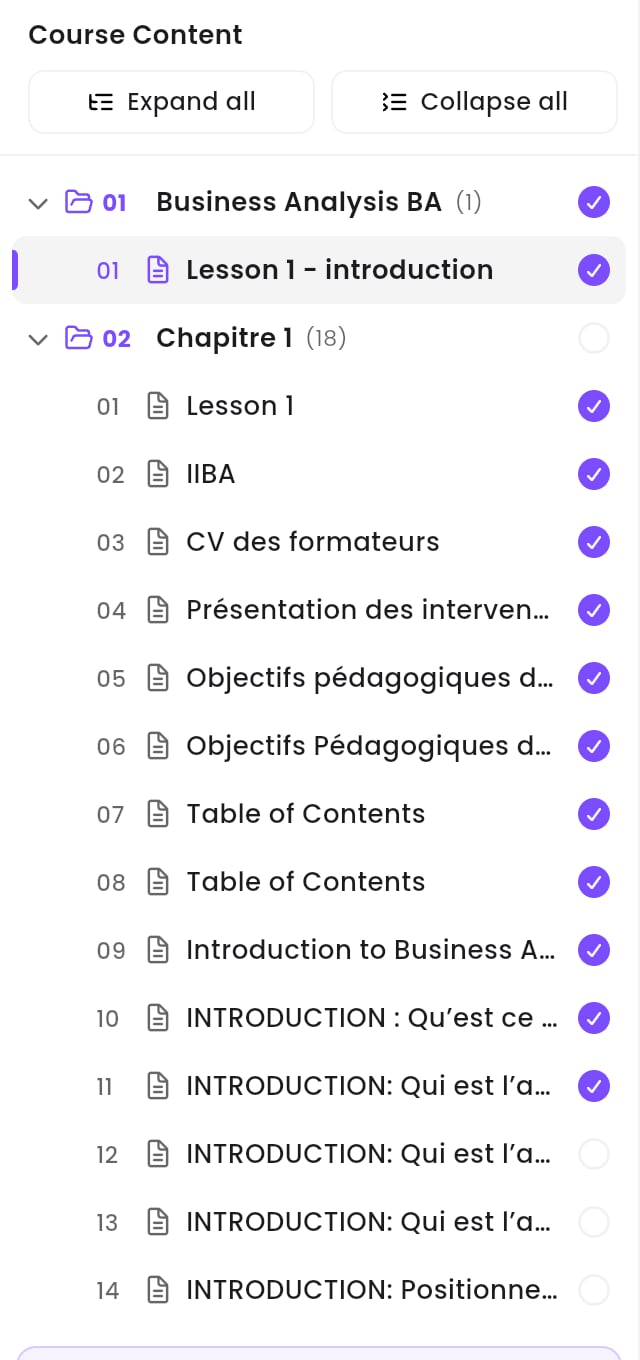
The Course Content panel, with a chapter opened.
1
Open a chapter
Click a chapter row — for example
02 Chapitre 1 (18). It unfolds and shows the lessons it
contains. The number in brackets is how many lessons are inside. Click the row again to fold
it back.2
Open a lesson
Click any lesson row. It opens straight away in the middle of the screen. You can jump to any
lesson of the training at any time — nothing is locked once you own the training.
3
Open everything at once, or close it
Expand all unfolds every chapter, Collapse all folds them all back. Handy to get an
overview of a long training.
Reading the panel at a glance
Give the lesson more room
Click the panel icon in the toolbar (just right of the back arrow) to hide the Course Content panel. The lesson then takes the whole width. Click it again to bring the panel back.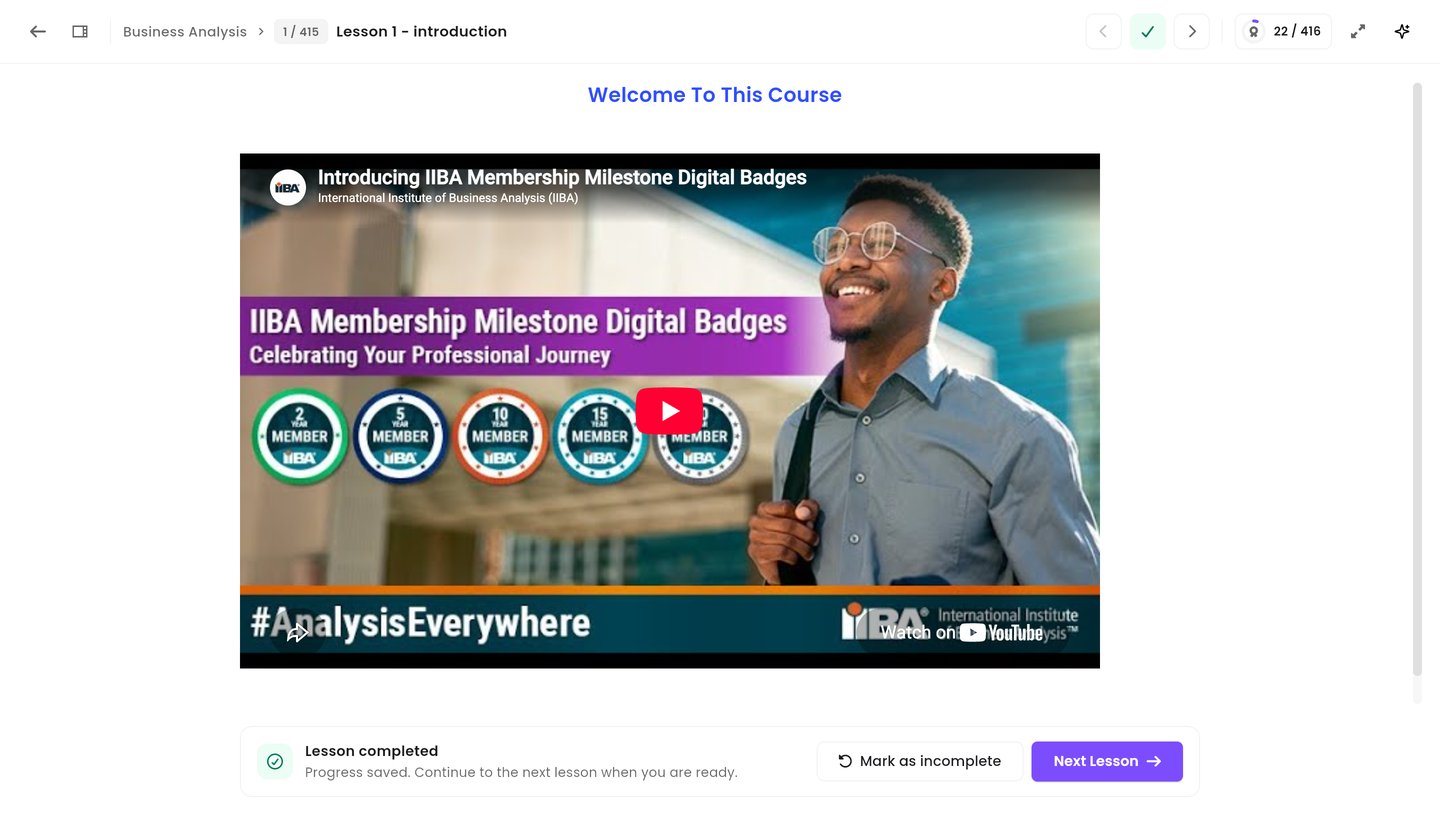
The same lesson with the Course Content panel hidden.
Step 5 — Study a lesson and mark it complete
Read, watch or scroll through the lesson in the middle of the screen. A lesson can hold text, images, videos and PDF documents — use the player controls inside a video as usual. When you are done, use the bar at the bottom of the lesson:
The bar below a lesson you have already completed.
- Lesson not finished yet — the bar asks “Finished this lesson?” with “Mark it as complete to save your progress and move on.” Click Mark as complete and continue: it saves your progress and opens the next lesson.
- Lesson already finished — the bar shows “Lesson completed” and “Progress saved. Continue to the next lesson when you are ready.” Click Next Lesson to carry on, or Mark as incomplete if you marked it by mistake.
Your progress is saved on the spot, on the server. You can close the browser and pick the
training back up later, on any computer, exactly where you stopped.
Step 6 — Follow your progress toward the certificate
Click the medal chip in the toolbar, or Certificate Progress at the bottom of the Course Content panel.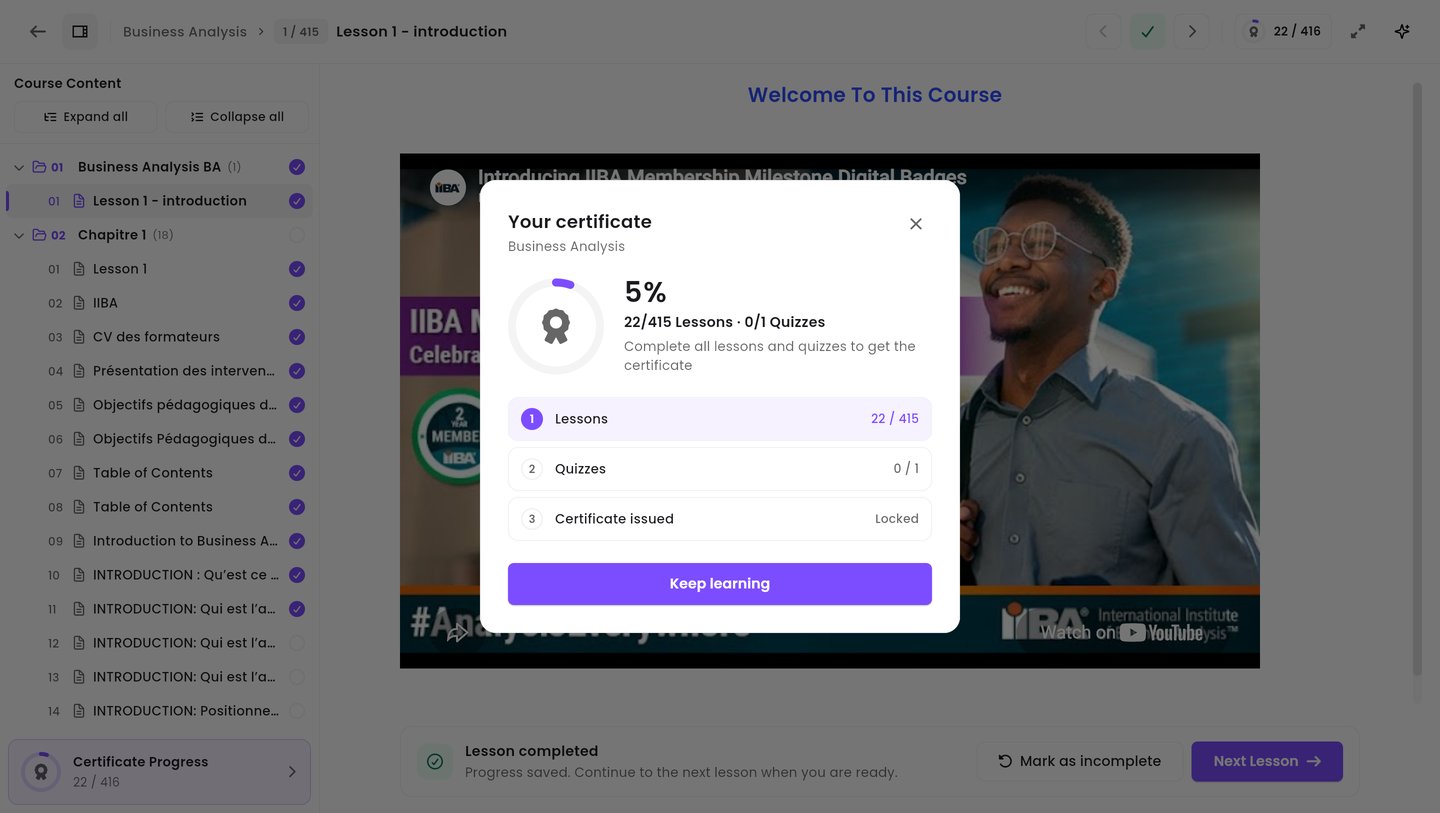
The certificate progress window.
- Lessons — how many you have completed out of the total.
- Quizzes — how many you have passed out of the total.
- Certificate issued — stays Locked until the first two are complete.
Good to know
Do I have to finish the lessons in order?
Do I have to finish the lessons in order?
No. Once a training is yours, every lesson of every chapter is open. Click any of them in the
Course Content panel. The order only matters for the certificate: it needs all of the
lessons and quizzes, whichever way round you do them.
I closed the training — do I lose my place?
I closed the training — do I lose my place?
No. Go back to My Content → My Trainings and click Continue on the card: the training
reopens where you left off.
A video will not play
A video will not play
Check your internet connection first, then reload the page. If it still will not play, use
Help Center in the top bar to get in touch with support.
Can I change the language of the app?
Can I change the language of the app?
Yes. Click your avatar at the top right, then Languages. English, French and Arabic are
available. The whole app, this training included, switches over. See
Manage your account.