Everything below is for the web app on a computer, signed in as an Admin. The learner’s
side is explained in the student guides
Use a voucher and Buy a training or an exam.
Table of contents
- Step 1 — Open the vouchers
- Step 2 — Check a voucher
- Step 3 — Create a voucher
- Step 4 — Send, update or archive a voucher
- Step 5 — Create a coupon
- Good to know
Step 1 — Open the vouchers
Click Discounts in the sidebar. The Vouchers tab opens first.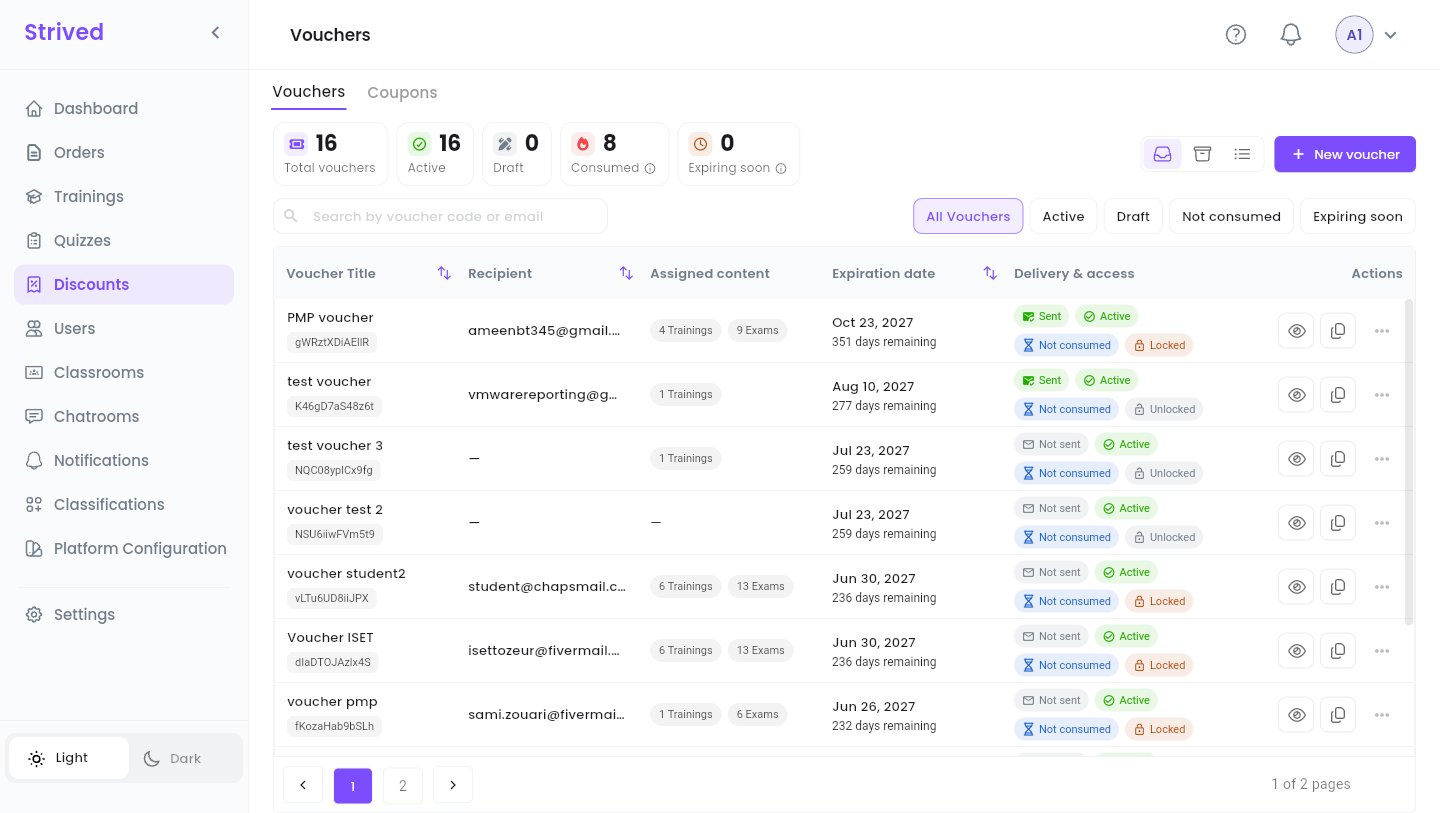
Discounts → Vouchers.
Step 2 — Check a voucher
Click the eye on a row.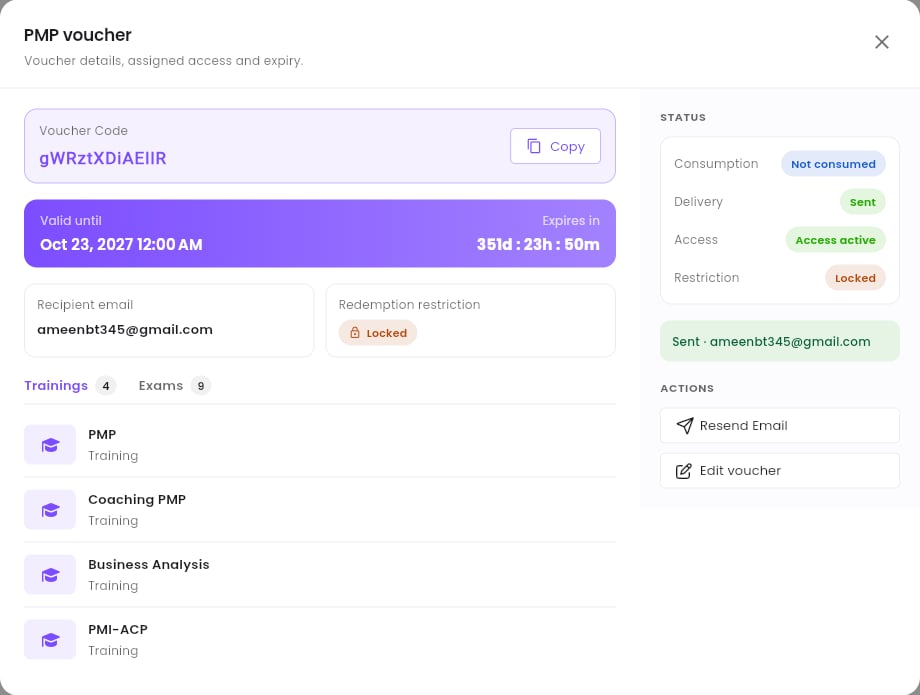
A voucher's details.
Step 3 — Create a voucher
Click New voucher at the top right.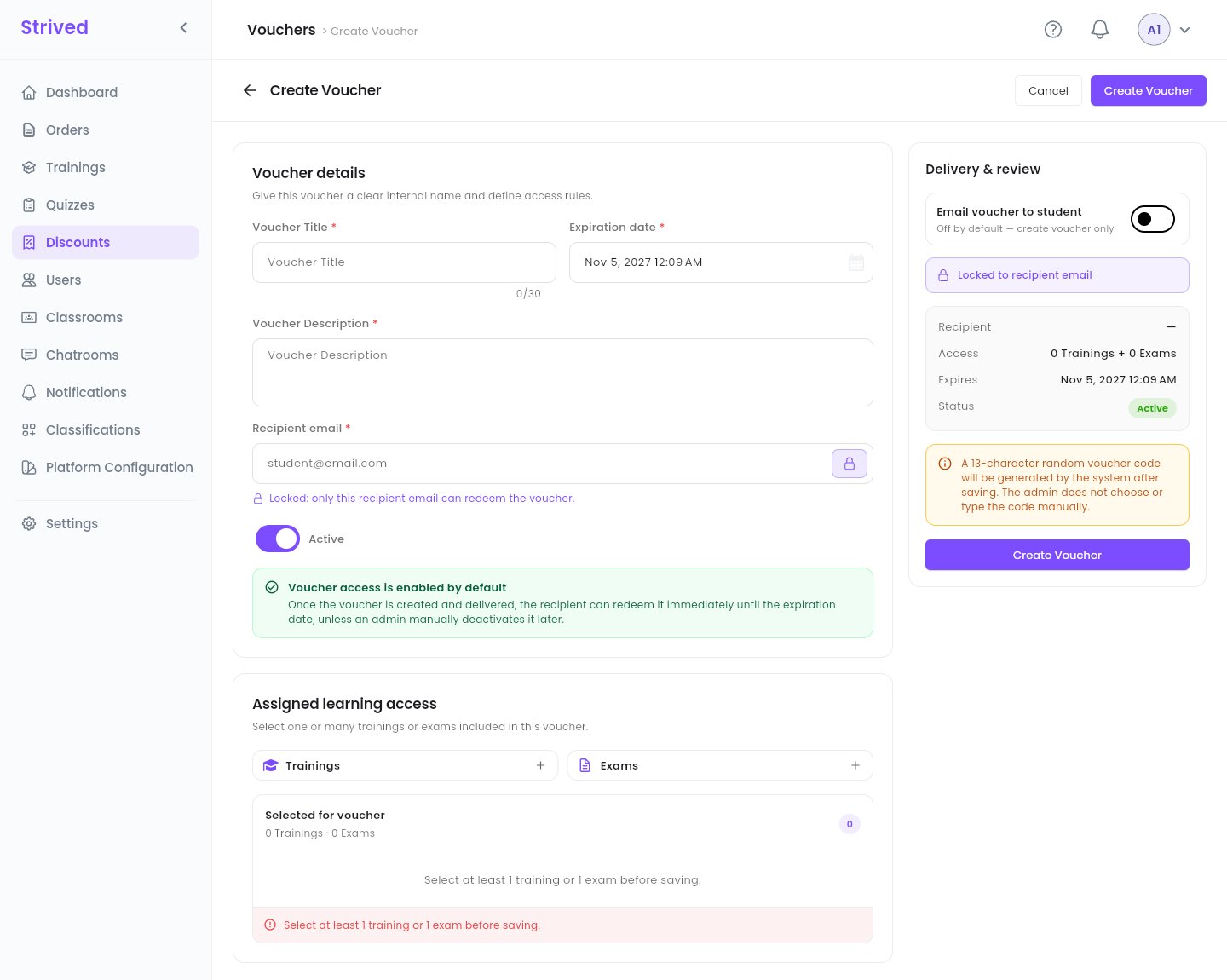
Create Voucher.
1
Voucher details
Give the voucher a Voucher Title (an internal name, 30 characters at most), an Expiration
date and a Voucher Description.
2
The recipient
Type the Recipient email. With the padlock on (the default), the voucher is locked:
“only this recipient email can redeem the voucher.” Click the padlock to unlock it.
3
Active or not
Active is on by default: the recipient can redeem the voucher as soon as they get it, until
the expiration date. Turn it off to create it as a draft.
4
Assigned learning access
Click + next to Trainings and next to Exams to pick what the voucher unlocks. You
need at least one training or one exam.
5
Delivery
In Delivery & review, turn on Email voucher to student to e-mail it right away. It is off
by default: the voucher is only created.
6
Create
Check the summary (Recipient, Access, Expires, Status) and click Create
Voucher.
You do not choose the code: the platform generates a random 13-character code when you save.
Step 4 — Send, update or archive a voucher
The ⋯ menu of a row offers:Step 5 — Create a coupon
Open the Coupons tab and click Add Coupon.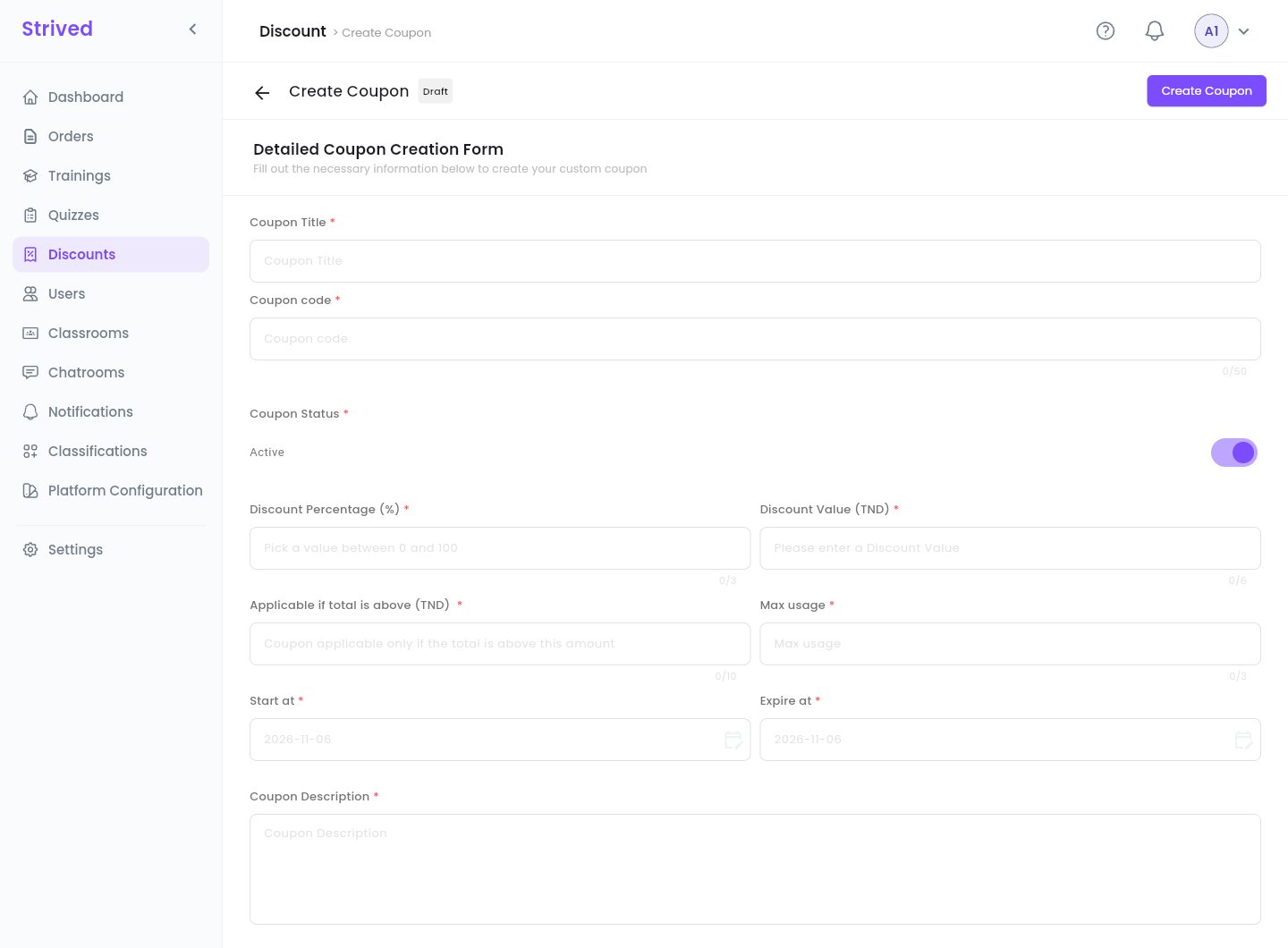
Create Coupon.
1
Name the coupon
Coupon Title, and the Coupon code learners will type (50 characters at most).
2
Status
Coupon Status: Active lets learners use it right away.
3
The discount
Fill in either a Discount Percentage (%) (between 0 and 100) or a Discount Value
(TND). As soon as you type in one, the other is disabled.
4
The conditions
Applicable if total is above (TND): the minimum cart total. Max usage: how many times the
coupon can be used in all. Start at / Expire at: when it works.
5
Create
Add a Coupon Description and click Create Coupon.
Good to know
The learner says the voucher does not work
The learner says the voucher does not work
Open it (Step 2) and check: is it Active, not expired, not Consumed already? If it is
Locked, the learner must be signed in with the Recipient email. The learner sees the
reason in the app, e.g. “Voucher has expired.” or “Voucher has already been used.”
The voucher e-mail did not arrive
The voucher e-mail did not arrive
Ask the learner to check their spam folder, then use Resend Email (or ⋯ → Send email).
You can also copy the code with the copy icon and send it yourself.
Voucher or Assign learners?
Voucher or Assign learners?
Both give content for free. Assign learners (on a training or an exam) acts at once on
accounts that already exist. A voucher bundles several trainings and exams and travels by
e-mail, so the recipient redeems it whenever they are ready.