

Everything below is for the web app on a computer, signed in as an Admin. Amounts are in
Tunisian dinars (TND).
Table of contents
- Step 1 — Open the orders list
- Step 2 — Find an order
- Step 3 — Confirm or cancel a payment
- Step 4 — Add an internal note
- Step 5 — Read the order’s details and system log
- Step 6 — Archive or export orders
- Good to know
Step 1 — Open the orders list
Click Orders in the sidebar.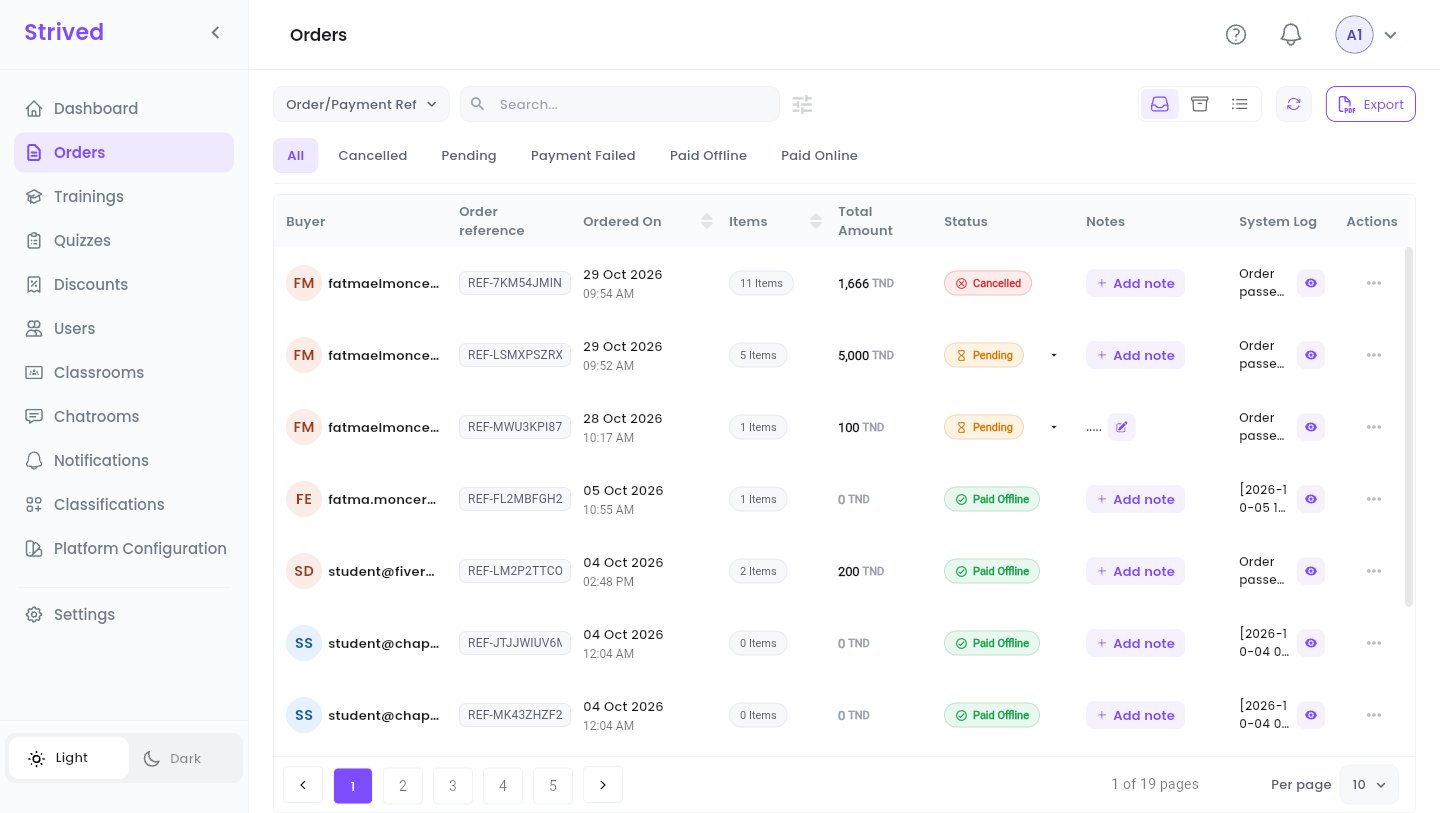
Orders: one row per order, newest first.
Step 2 — Find an order
1
Choose what you search by
The list on the left of the search box sets what you type: Order/Payment Ref, Training,
Exam or Learner.
2
Type in Search…
The table filters as you type.
3
Filter by status
The tabs below the search box show All orders, or only the Cancelled, Pending,
Payment Failed, Paid Offline or Paid Online ones. The sliders icon next to the
search box hides or shows these tabs.
Step 3 — Confirm or cancel a payment
A Pending order is waiting for an offline payment: bank transfer, cash at your offices, cheque, and so on. Once the money has arrived:1
Open the status list
Click the small arrow next to the Pending badge.
2
Pick the new status
Paid Offline confirms the payment. Cancelled cancels the order.
3
Confirm
The platform asks “Are you sure you want to Confirm the Payment ?” (or “Are you sure you
want to cancel This Payment ?”). Confirm, and the badge changes.
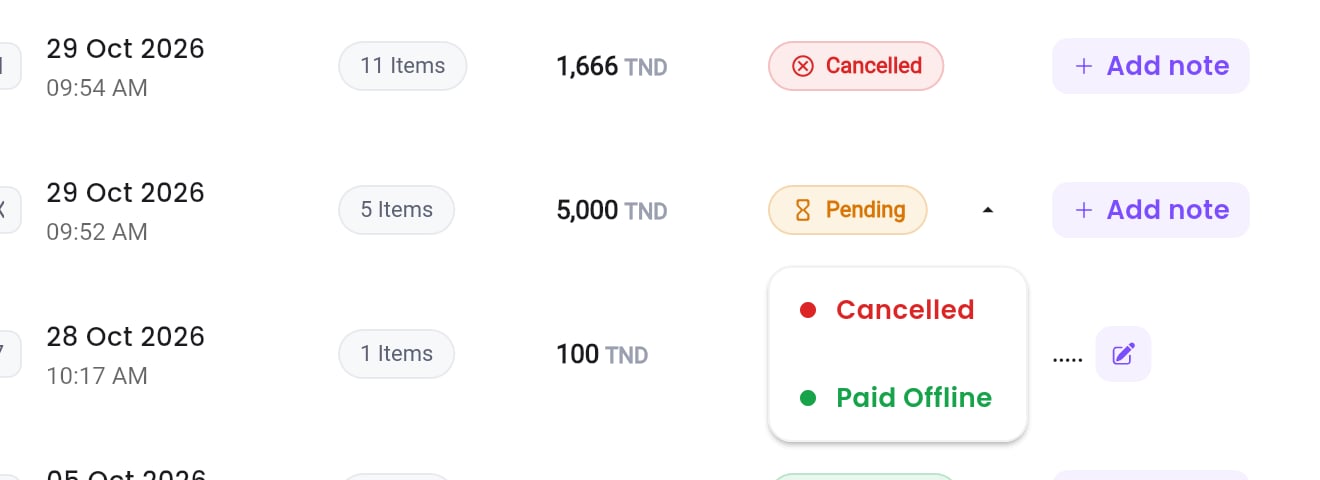
The status list of a pending order.
- Paid Offline: the learner gets the trainings and exams of the order straight away, earns the loyalty points they carry, and receives an in-app notification “Order Accepted”. If the learner already owned one of the items through another paid order, the platform removes it from this order and writes it in the system log.
- Cancelled: the learner receives an in-app notification “Order Cancelled” asking them to contact support.
Step 4 — Add an internal note
Click + Add note in the Notes column (or the pencil next to an existing note).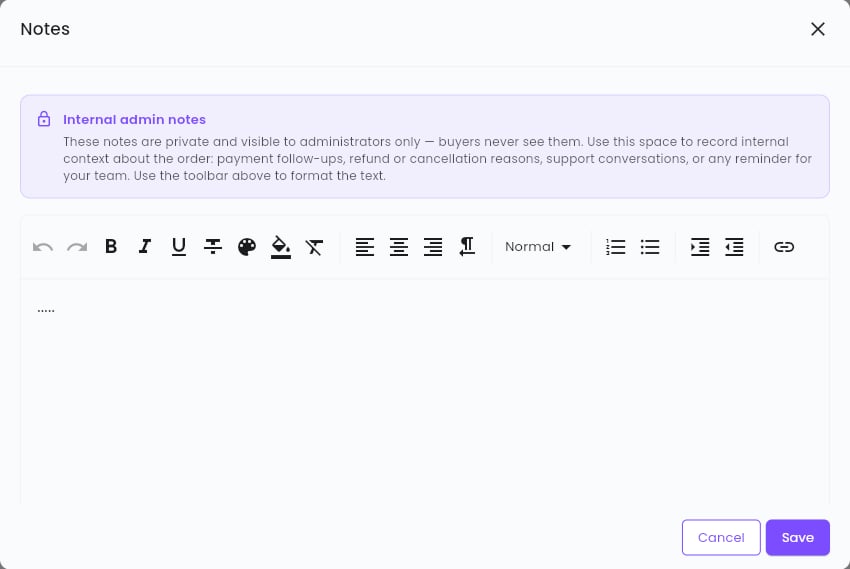
The Notes window.
Step 5 — Read the order’s details and system log
- What was ordered: ⋯ → Preview opens Order details, with each item, its type (Training or exam), the order date and its price.
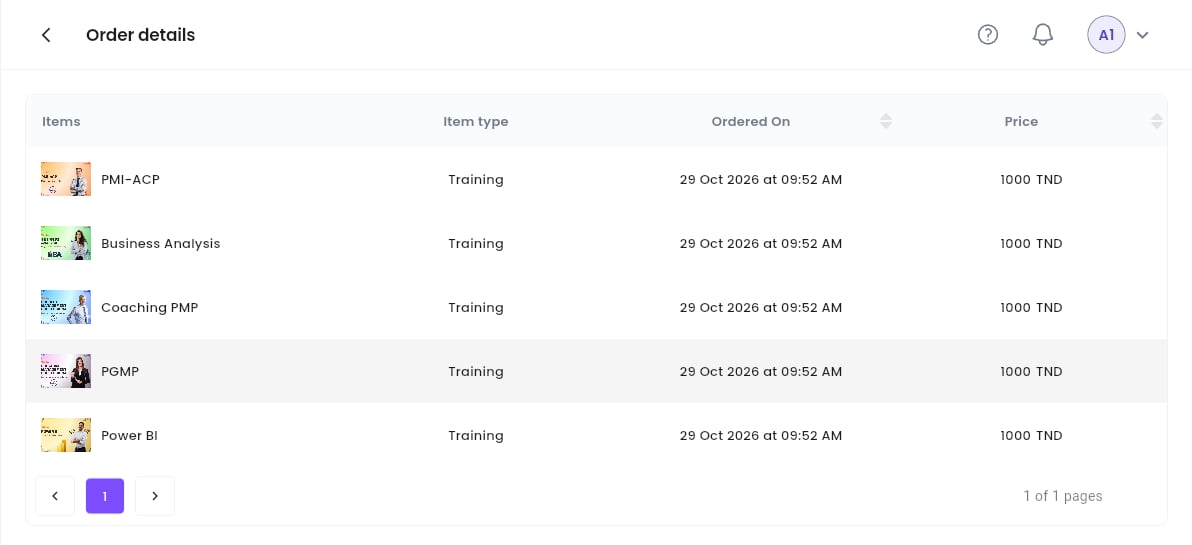
Order details.
- What happened: the eye in the System Log column opens the log, one numbered line per event, for example “Order passed by ’…’ with coupon ‘N/A’ at 2026-10-04 14:48:10”. The copy icon at the top of the window copies the whole log.
Step 6 — Archive or export orders
- Archive: ⋯ → Archive moves a paid order out of the main list. Find it again with the Archived icon at the top right, and bring it back with Restore. Pending and cancelled orders cannot be archived.
- Export: click Export at the top right, tick the orders you want in Export orders (the search box finds them by reference), then Confirm. You get a ZIP file with one PDF per order.
Good to know
A learner paid but cannot see their training
A learner paid but cannot see their training
Check the order’s status: access opens only once it is Paid Offline or Paid Online. If
it is still Pending, confirm the payment (Step 3).
A learner ordered the same item twice
A learner ordered the same item twice
The platform refuses a new order while an older one holding the same item is still Pending:
the learner has to pay or cancel the first one. If two paid orders hold the same item, the
duplicate is removed when the second one is confirmed, and the system log says so.
Where do I see a coupon used on an order?
Where do I see a coupon used on an order?
In the system log: the “Order passed by …” line names the coupon, or
N/A when there was
none.Online payments
Online payments
Online orders (Pending Online, Paid Online, Payment Failed) get an extra menu item,
Flouci - Payment Details, which opens the payment page recorded in the order’s notes.